 Keet Support
How to Report Bugs
How to report a Keet bug so it can be fixed quickly, and how to gather the error details, app version and device information we need.
Try these first
Many problems can be fixed in a few minutes. Before you report a bug, check whether one of these helps:
- Make sure you're running the latest version of Keet, then restart the app.
- Keet won't connect, a group won't load or messages are missing: Keet App issues and Other Issues.
- A group is slow right after an update: Slow Groups After Updating.
- No alerts or ringtones: Notifications.
- Problems with call or message audio and video: Sound issues and Video issues.
Still stuck? Report it using the steps below.
How to report a bug
Keet runs without servers and does not store any information we could use for troubleshooting. 🔐
That’s why your detailed report is essential in helping us understand and resolve the problem.
Post your report in the Bug Bandits 🐞 group: search for Bug Bandits in Keet and join directly. For general questions, you can also ask in the Keet Welcome group.
The more accurately you describe the problem, the more likely we can reproduce it ourselves, and a bug we can reproduce is much easier to find and fix.
One message, one bug
Put everything about a bug in a single message. Scattered messages can get lost in the chat. If you're seeing two bugs, send two separate reports.
Describe what happened
Explain the bug as well as you can and, where possible, give the exact steps to reproduce it. For example:
- Were you sending a file? If so, how: from the app, drag and drop, copy and paste, from the gallery or from another app?
- If it's a file transfer, what is the format and size of the file? Is the person sending it online?
- Does it happen every time or only sometimes? If only sometimes, can you spot a pattern?
- When did it start? After the latest update, in the last couple of releases, or has it always happened?
Add screenshots or a video
Screenshots show us what Keet looked like when the bug happened. They don't replace a description, so make sure each one supports the details you've written.
Include supporting information
A detailed description and a couple of screenshots are the bare minimum. To narrow things down quickly, also include:
- Error details, if Keet shows an error.
- Your Keet version and package list.
- Your OS and device details, for every affected device.
See Gather supporting information below for how to find each of these.
Bug Bandits is a public group, so anyone in it can read your report. Before you post, remove anything you don't want to share from your screenshots and copied logs, such as names or message text.
Gather supporting information
The steps depend on your system, so choose yours:
1. Error details
If Keet shows an error, click View details in the error message. You can also open any earlier error from the error log:
-
Click your profile icon in the top-right corner of Keet.

-
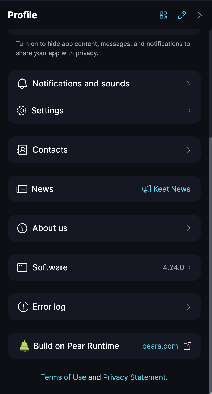
Scroll down the sidebar and click Error log.
-
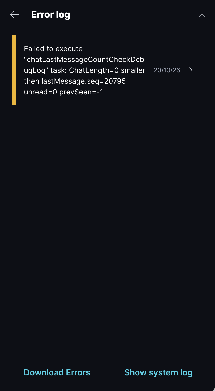
Click the error you want to report. The newest error is at the top.
-
The Error details screen shows what failed, in which group and when.
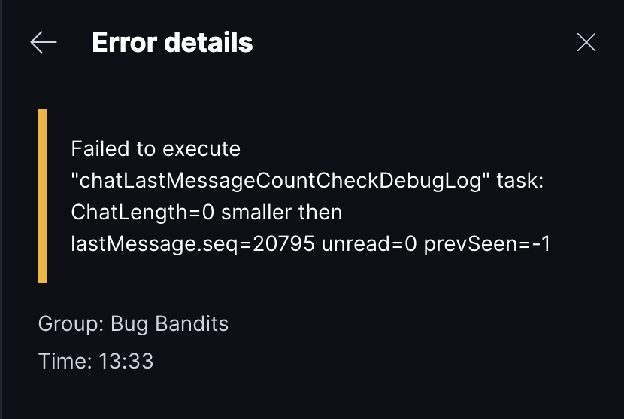
Click Copy details and paste the text into your bug report. Or click Report bug, which copies the details and joins the Bug Bandits group so you can paste them straight into your message.
To save every error in one file, click Download Errors at the bottom of the Error log screen. It saves a file named keet-errors-<date>.json that you can attach to your report.
If Keet shows Sorry! An error has occurred, click Problem details > Copy and paste the text into your bug report.
2. Console errors (optional)
The developer console shows more technical logs than the error log. Use it when the error log is empty or doesn't match the problem.
-
Click Keet in the menu bar and select Dev Mode.
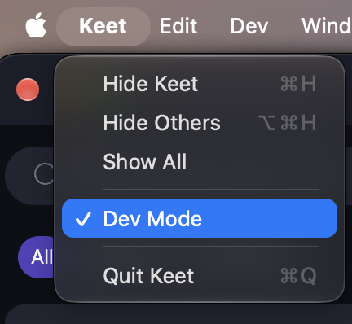
Dev Mode switches off when you quit Keet, so turn it on again each time you need it.
-
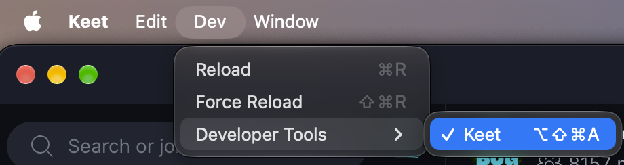
A new Dev option appears in the menu bar. Click Dev > Developer Tools > Keet.
-
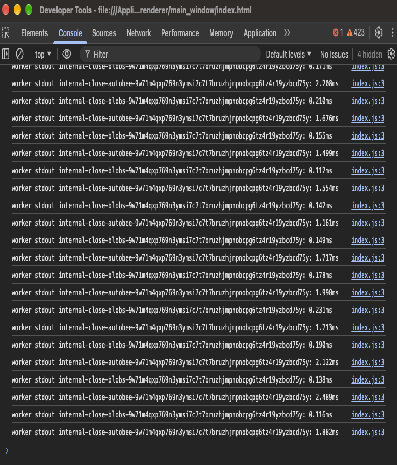
In the window that opens, select the Console tab.
-
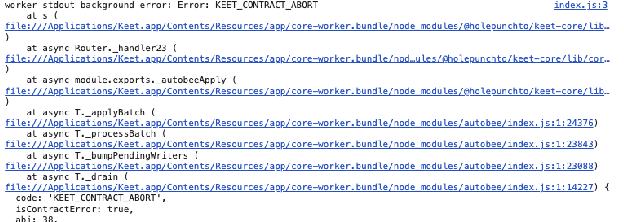
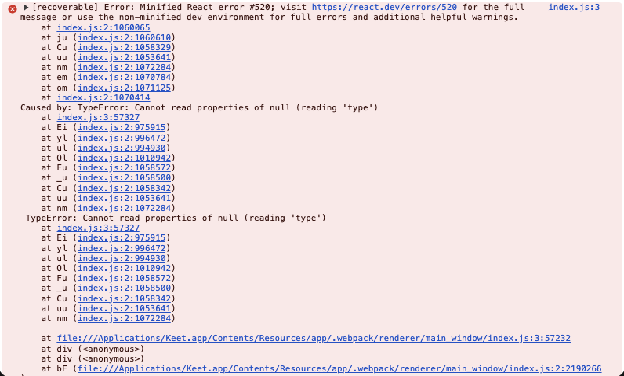
Repeat the actions that trigger the issue. Errors appear in the console, usually as red lines. Many include a stack trace, which lists the steps the code took before the error and lets us follow the exact path that causes your issue.
Errors can look like any of these:

-
Copy any errors you see and paste them into your bug report.
3. System log (optional)
The system log lists what Keet was doing before the problem. At the bottom of the Error log screen, click Show system log, then click Copy and paste the text into your bug report. Click Refresh to load the latest entries.
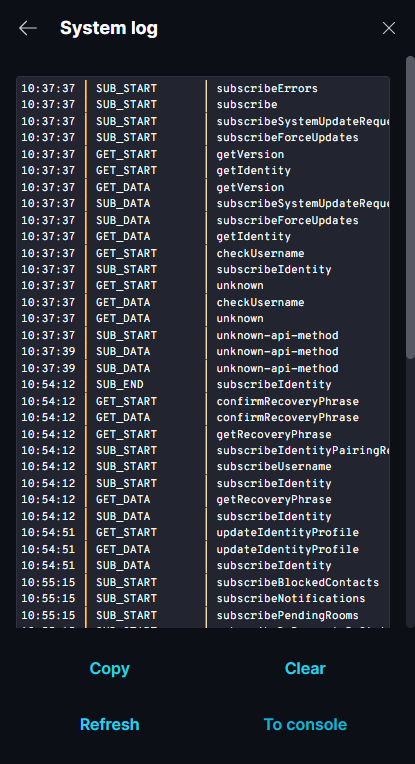
The log records each action Keet performed, so read it before you post and remove anything you don't want to share.
4. Keet version
-
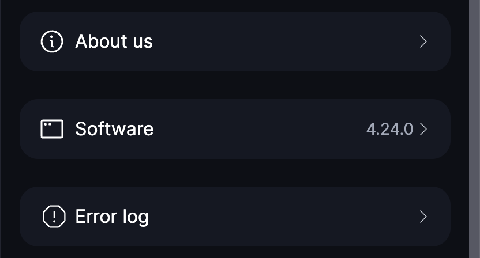
Click your profile icon, scroll down the sidebar and click Software. The version number is shown next to it.
-
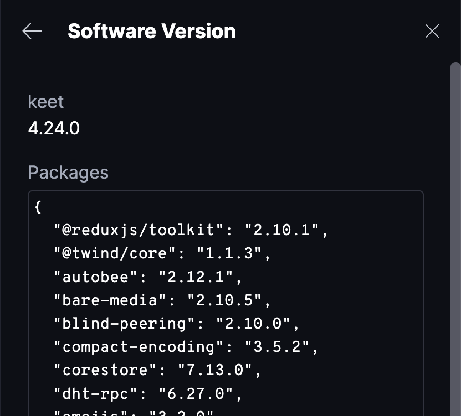
The Software Version screen has two sections: your Keet version (keet) and Packages. Hover over each section and click it to copy its contents.
-
Paste both into your bug report.
5. Mac details
Click the Apple icon in the top-left corner of your menu bar, then select About This Mac.

Copy your Chip (or Processor), Memory and macOS version. The model name, such as MacBook Pro, helps too. We don't need your serial number.

1. Error details
If Keet shows an error, click View details in the error message. You can also open any earlier error from the error log:
-
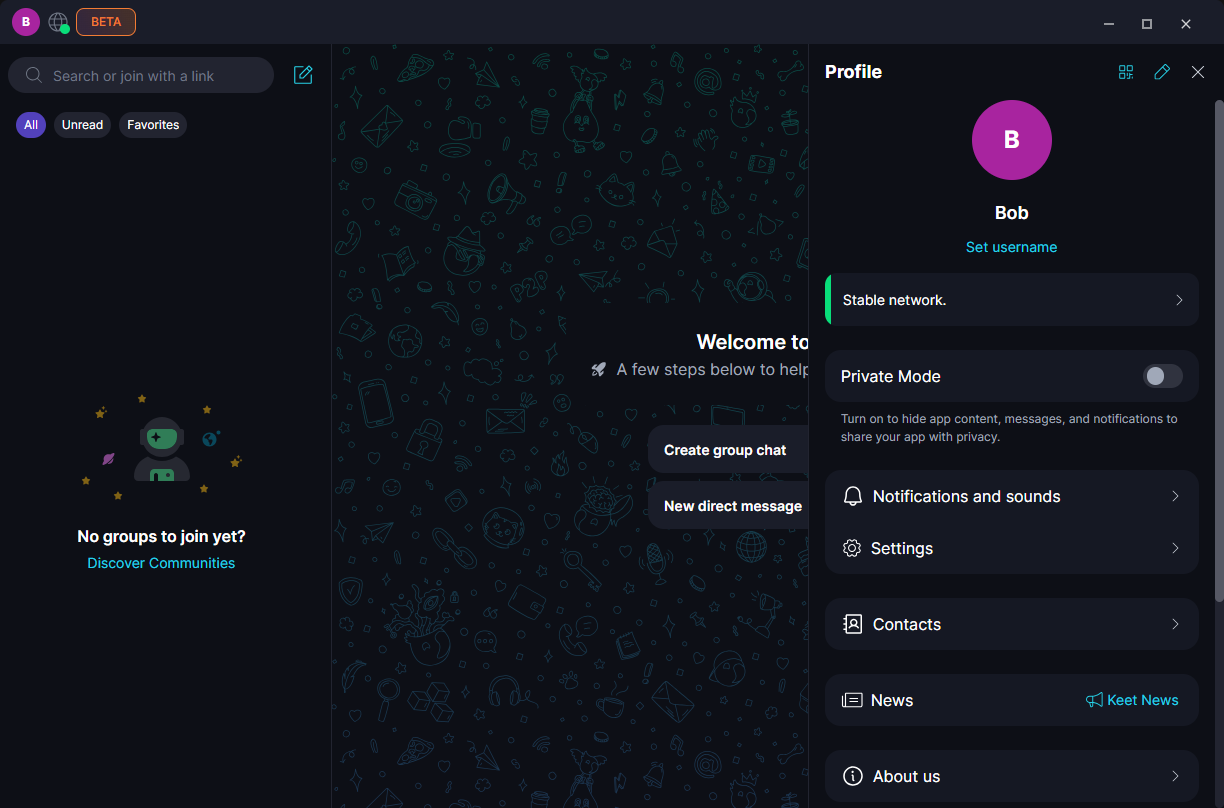
Click your profile icon in the top-left corner of Keet.
-
Scroll down the sidebar and click Error log.
-
Click the error you want to report. The newest error is at the top.
-
The Error details screen shows what failed and when, and the group if the error happened in one.
Click Copy details and paste the text into your bug report. Or click Report bug, which copies the details and joins the Bug Bandits group so you can paste them straight into your message.
To save every error in one file, click Download Errors at the bottom of the Error log screen. In the Save as window that opens, choose where to save the file. It suggests your Downloads folder and a name like keet-errors-<date>.json, and you can attach the file to your report.
If Keet shows Sorry! An error has occurred, click Problem details > Copy and paste the text into your bug report.
2. Console errors (optional)
The developer console shows more technical logs than the error log. Use it when the error log is empty or doesn't match the problem.
-
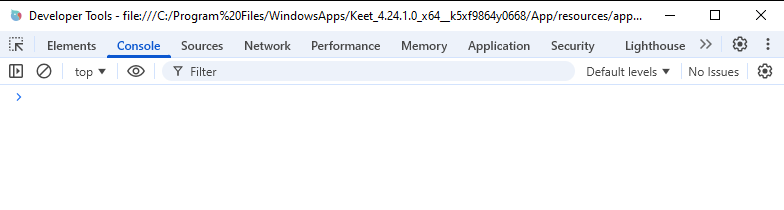
Click anywhere in Keet, then press Ctrl + Shift + U. A Developer Tools window opens. Keet's title bar has no menu, so you don't need Dev Mode.
-
In the window that opens, select the Console tab.
-
Repeat the actions that trigger the issue. Errors appear in the console, usually as red lines. Many include a stack trace, which lists the steps the code took before the error and lets us follow the exact path that causes your issue.
Errors can look like any of these:
-
Copy any errors you see and paste them into your bug report.
3. System log (optional)
The system log lists what Keet was doing before the problem. At the bottom of the Error log screen, click Show system log, then click Copy and paste the text into your bug report. Click Refresh to load the latest entries.
The log records each action Keet performed, so read it before you post and remove anything you don't want to share.
4. Keet version
-
Click your profile icon, scroll down the sidebar and click Software. The version number is shown next to it.
-
The Software Version screen has two sections: your Keet version (keet) and Packages. Hover over each section and click it to copy its contents.
-
Paste both into your bug report.
5. System details
-
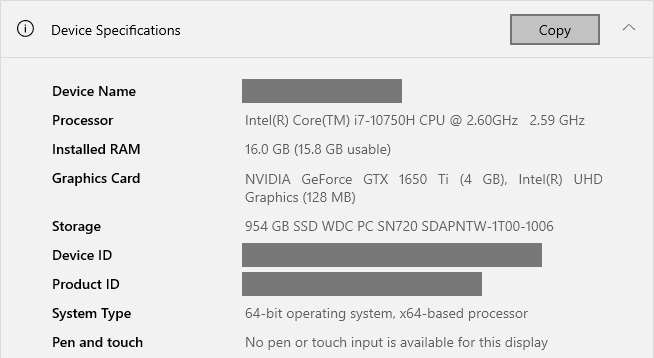
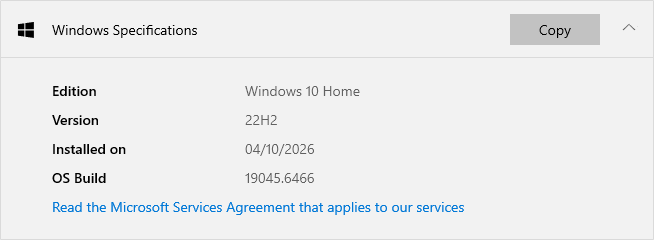
Windows: open Settings > System > About. Click Copy in the Device specifications section (processor, installed RAM and graphics card) and again in the Windows specifications section (edition, version and OS build), and paste both into your bug report. The copied text also includes your Device name, Device ID and Product ID. Delete those lines before you post, because Bug Bandits is public.
-
Linux: open Settings > About, or run
cat /etc/os-releasein a terminal, and copy your distribution name and version. Also tell us your desktop environment and how you installed Keet (Snap, AppImage ortar.gz).
1. Error details
Open the error log:
- Tap Profile at the bottom of the screen.
- Scroll down and tap Error Log. If it says No error logs found, Keet hasn't recorded an error yet.
- Tap the error you want to report. The Error details screen shows what failed and when.
- Tap Copy details and paste the text into your bug report.
Some error messages that appear in Keet also show a View file details link, which opens the same screen.
2. System log
For more technical detail, tap Show system log at the bottom of the Error Log screen. Tap copy and paste the text into your bug report. Use refresh to load the latest entries.
If Keet shows Sorry! An error has occurred, tap Problem details > Copy and paste the text into your bug report. This copy also includes your device, OS version and app version. You can then tap Export error logs, choose Core Logs or UI Logs, and share the file. If the file is empty or the share menu fails, send the copied problem details instead.
3. Keet version
- Tap Profile, then Software. The version number is shown next to it.
- The Versions screen shows your Keet version, followed by a build number (for example
4.24.0_424035), and the runtimes and packages. Tap Copy info to copy the runtimes and packages. - Paste them into your bug report and add the Keet version line yourself, because Copy info doesn't include it.
4. Device details
- iPhone / iPad: open Settings > General > About and note the Model Name and iOS Version (or iPadOS Version).
- Android: open Settings > About phone and note the device model and Android version. Menu names vary slightly between manufacturers.
If more than one device is affected, include the details for each of them.
Put it all together
Copy this template into Bug Bandits and fill it in:
What happened:
Steps to reproduce:
How often it happens:
When it started (after an update, or always?):
Keet version and packages:
Device and OS:
Error details:
Then add your screenshots or a screen recording.
Suggestions and feature requests
Have an idea for improving Keet? Post it in the Bug Bandits group, which is also the place for feedback and suggestions.
We appreciate your help in improving Keet! 💫
If you can't open Keet or join groups, please email us at support@holepunch.to